MiPermit Twitter
iPhone
Mobile Cashless Parking with iPhone
iPhone Device

The iPhone is one of the most popular telephone and entertainment devices, with a large audience in the UK. There is now an iPhone companion application to simplify your parking experience no matter what your location - in a meeting, the office, shopping or visiting friends.

The free application allows you to login to your account and perform tasks such as:

  • Add new vehicles to your account and use them instantly
  • Add a new stay now, or up to 7 days in advance
  • Set your default location to the car park you use the most
  • Cancel parking that hasn't started yet
  • Search for parking locations
  • Maintain a list of favourite locations
  • View opening/closing times and tariffs for all locations
Download the Application
Apple App Store Logo
Available Free on the App Store

The MiPermit iPhone application can be downloaded from the iTunes store for free. Click the App Store logo, this will open iTunes.

iPhone Cashless Parking Guide
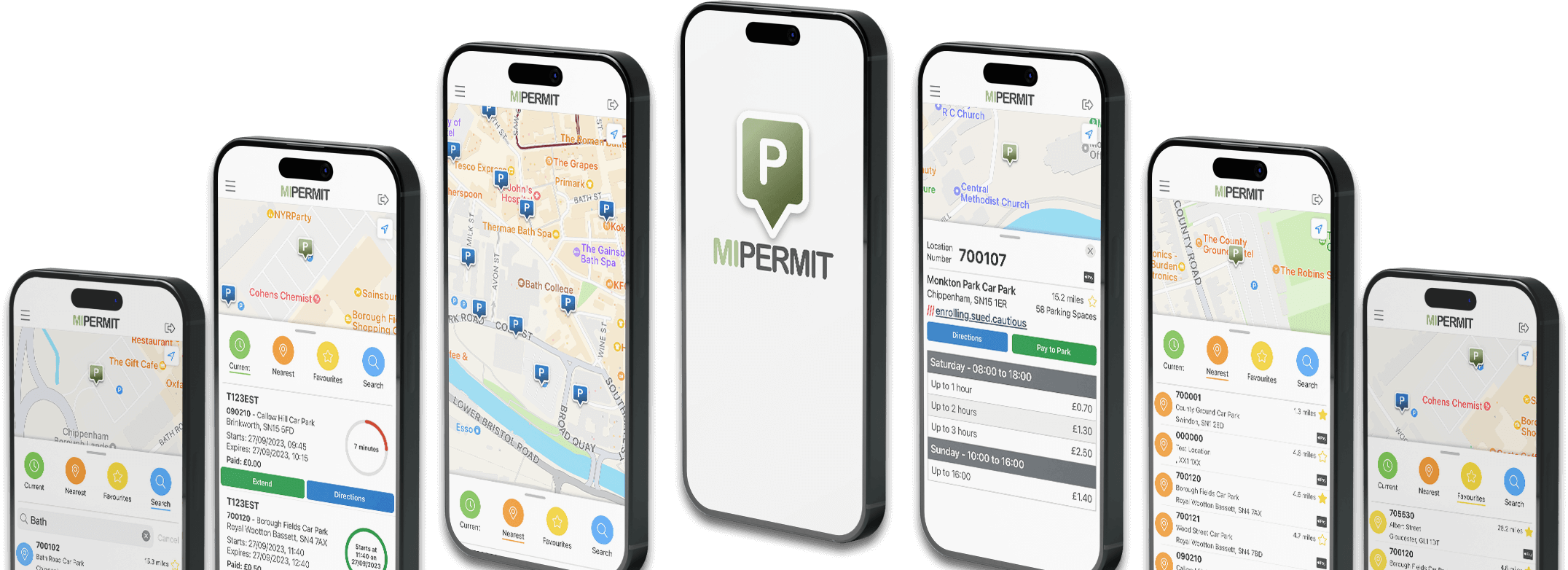
MiPermit Screen Images

After downloading and installing the application from the App Store, touch the MiPermit icon to start.

Logging In

To login to MiPermit, enter your mobile number and PIN and press Login

Should you enter the PIN incorrectly 3 times, your account will be locked. You can unlock your account by using the Reset PIN feature.

The Home Screen

The Home screen shows your current parking stays and the ability to create new stays, view details of the stay, or cancel future stays.

The bottom of the screen shows section buttons - these allow you to return to the Pay & Stay home screen, view your account billing information (invoicing) and change application options.

The Home screen also displays parking in progress. This includes vehicle details, car park location, and a progress bar showing the time left for your stay. Touching these details will show further information.

Creating a New Stay

From the home screen, touch the Add button.

You will be presented with selection screen. Choose the vehicle to park, a location from the list, the start date and time required. There is also an option to receive an SMS reminder 20 minutes before your stay is due to end. When all required information is entered, press Save - you will be returned to the home screen which now shows your newly created stay.

Cancelling a Stay

Cancelling a future stay can be done on the Home page. Simply select the required stay and press Cancel. You will be unable to cancel if a stay has been created with an immediate start time or is already in progress.

Account Invoices Screen

Use the account screen to view your details. Select the Vehicles sub-section and view, edit, or add vehicles to the account. These will be available to park with immediately.

To add a new vehicle you will need to enter the vehicle registration number, make, model and colour. This will allow for easy identification of the vehicle in use.

Select a previously added vehicle to edit details.

Options Screen

The Options screen allows default values to be set, thus speeding your use of the MiPermit application. Select a default vehicle and location, and choose whether your reminder setting is on or off.

You can also select to not login automatically, or set a filter as to which area locations you want to see when creating a stay and select a skin colour if preferred.

Location Screens

There are various sections in the application that allow the viewing of a complete list of locations. Press the arrow next to each location and view the details - location, opening hours, and tariff durations and costs. There is also a map of the location marked with a pushpin.